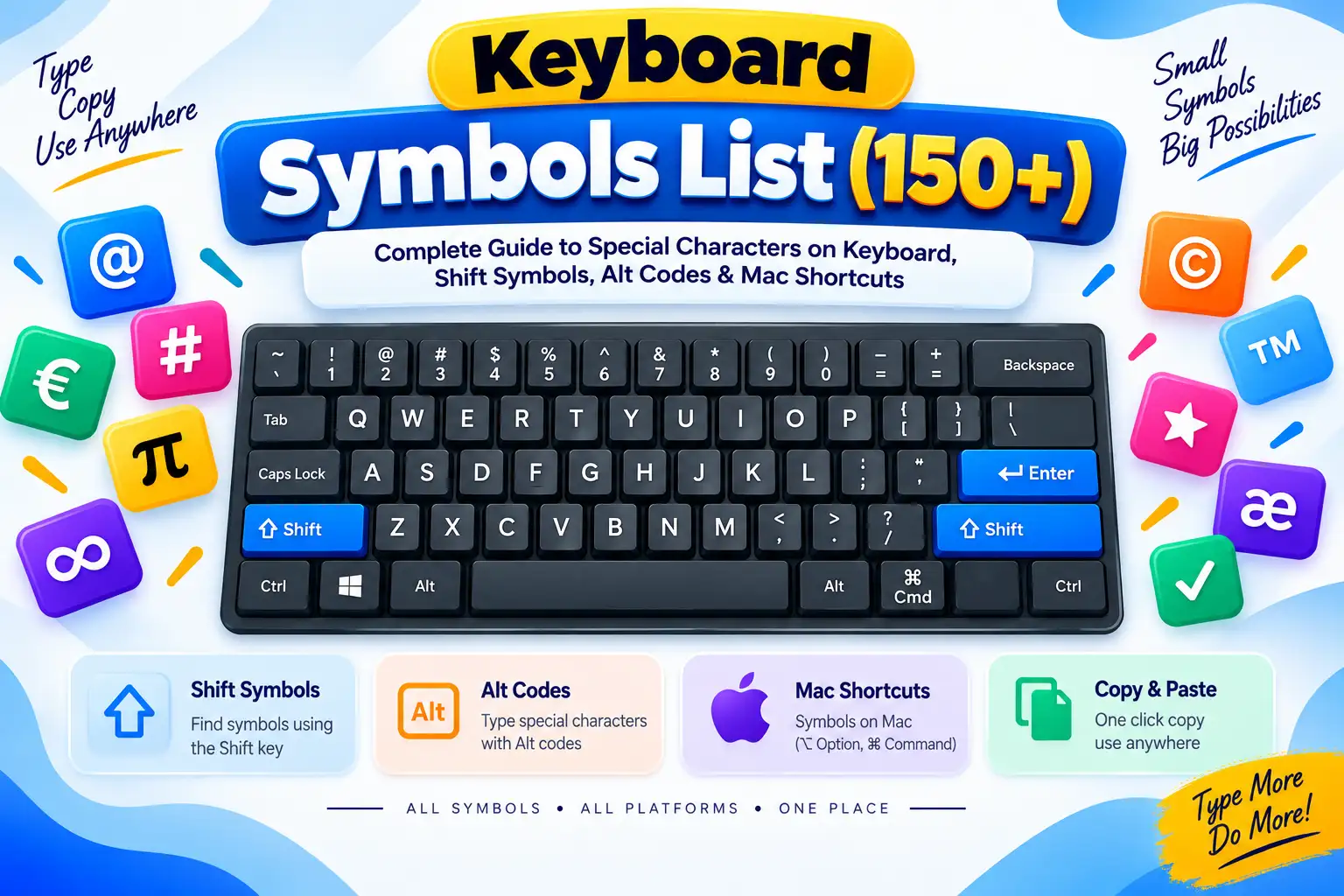
How to Type the At Symbol (@): Windows, Mac, International Keyboards & Mobile Shortcuts
Need to know how to type the at symbol (@) on your computer or phone? Use our 1-click copy card below or follow our verified shortcuts for US Keyboards (Shift + 2), UK Keyboards (Shift + '), Windows Alt code (Alt + 64), Mac, international layouts (Spanish, French, German), mobile keyboards, and our step-by-step fix when Shift + 2 types double quotes instead.
At Symbol Keyboard Shortcut Matrix (All Keyboards & Layouts)
The at sign or commercial at symbol (@) is one of the most critical digital characters in the world. Essential for writing email addresses, mentioning usernames on social media platforms, creating programming annotations, and structuring spreadsheets, its keyboard position varies significantly depending on your national keyboard layout. Below is your master shortcut reference table:
Keyboard Layout / Country
Primary Keyboard Shortcut
Key Location Description
Output Glyph
US QWERTY (United States / Standard)
Shift + 2
Top number row above the letters
@
UK British (United Kingdom)
Shift + ' (Single Quote)
Next to the Enter/Return key
@
UK Mac (Apple British Layout)
Option + 2 (or Shift + ')
Alt/Option + Number 2 key
@
Spanish (Spain & Latin America)
AltGr + 2 (or AltGr + Q)
Right Alt key + Number 2 or Q
@
French (AZERTY Layout)
AltGr + à (or Shift + 0)
Right Alt + letter à (zero key)
@
German & Austrian (QWERTZ)
AltGr + Q (or Ctrl+Alt+Q)
Right Alt + Letter Q
@
Italian
AltGr + ò (or AltGr + ç)
Right Alt + Key to the right of L
@
Portuguese (Brazil & Portugal)
AltGr + 2 (or AltGr + Q)
Right Alt + Number 2
@
Nordic (Swedish, Danish, Norwegian, Finnish)
AltGr + 2
Right Alt + Number 2
@
Windows Universal Alt Code
Alt + 64 (Numeric Keypad)
10-key numeric keypad on right
@
iPhone, iPad & Android
123 → tap @
Numbers/symbols layer on touchscreen
@
HTML Entity (Named & Numeric)
@ / @ / @
Web source code and template files
@
WINDOWS OS
How to Type the At Symbol on Windows (5 Methods)
On Windows personal computers and laptops, there are several hardware and software methods to input the at sign:
Method 1: Standard Key Combination (Shift + 2 or Shift + ')
On standard US English keyboards, hold down the Shift key and press the 2 key on the top number row. If your computer is set to the UK English layout, hold Shift and press the single quote key (') located to the right of the semicolon key.
Method 2: Windows Alt Code (Alt + 64)
The universal ASCII hardware Alt code for the at sign is Alt + 64 (or Alt + 064). This works in all Windows applications regardless of your active keyboard layout or regional language:
1
Enable Num Lock: Ensure the Num Lock light on your keyboard is turned ON.
2
Press and Hold the Alt Key: Press down and hold the left Alt key.
3
Type 64 on the Numeric Keypad: Type 6 then 4 using only the 10-key numeric keypad on the right.
4
Release Alt: Release the Alt key, and @ will appear immediately.
Method 3: Windows Emoji & Symbol Panel (Win + .)
For ultra-slim laptops without a physical numeric keypad:
Press Win + . (Windows Key + Period) or Win + ;.
Click the Symbols (Ω) icon at the top.
Select the General Punctuation tab and click the @ symbol.
Method 4: Windows On-Screen Keyboard (OSK)
Press Win + R, type osk, and press Enter.
Click Shift and then click 2 (or the key showing @) on the virtual on-screen keyboard.
APPLE MACOS
How to Type the At Symbol on Mac (macOS)
Apple macOS computers (MacBook Pro, MacBook Air, iMac, Mac mini) provide straightforward ways to type the at symbol:
Method 1: Mac Universal Keyboard Shortcuts
US English Mac Layout: Press Shift + 2.
UK British Mac Layout: Press Option + 2 or Shift + '.
European / ISO Mac Layouts: Press Option + G (on French Macs), or Option + L (on German Mac keyboards).
Method 2: macOS Character Viewer (Ctrl + Cmd + Space)
Press Ctrl + Cmd + Space to launch the Character Viewer.
Type at in the search bar.
Double-click the @ symbol to insert it into Pages, Safari, Mail, or Notes.
TROUBLESHOOTING GUIDE
Why is Shift + 2 Typing Double Quotes (") Instead of @? (How to Fix It)
One of the most frequent technical frustrations encountered by computer users worldwide is pressing Shift + 2 and getting double quotation marks (") instead of the at symbol (@).
💡 The Root Cause: US vs. UK Keyboard Layout Mismatch
On a US English keyboard, the 2 key holds the @ symbol (Shift + 2 = @), while the quote key holds double quotes (Shift + ' = "). On a UK English keyboard, these two positions are exactly reversed: the 2 key holds double quotes (Shift + 2 = "), while the quote key holds the at sign (Shift + ' = @). When your operating system language accidentally switches to UK English, your keyboard types " instead of @!
How to Fix on Windows 10 & Windows 11
1
Quick Toggle Shortcut: Press Win + Spacebar (or Alt + Shift). A small menu will pop up on the right side of your screen.
2
Select English (United States): Choose English (United States) - US Keyboard. Your Shift + 2 key will immediately type @ again!
3
Remove Unwanted Layouts Permanently: Go to Settings → Time & Language → Language & Region. Under Preferred Languages, remove any language keyboards you don't use to prevent accidental switching.
How to Fix on Mac (macOS)
Open System Settings → Keyboard → Text Input → Edit Input Sources.
Ensure U.S. is selected at the top of the list, and remove British or other conflicting layouts.
GLOBAL KEYBOARDS
How to Type the At Symbol on International Keyboard Layouts
Because typewriter manufacturers in the 19th and 20th centuries designed national keyboard layouts around local linguistic frequencies, the @ key occupies very different physical coordinates across global keyboards. Below is the comprehensive international typing guide:
Spanish & Latin American Keyboards
On Spanish (Spain) and Latin American keyboards, the at sign is accessed via the AltGr (Alternate Graphic) key:
Spain Spanish Layout: Press AltGr + 2.
Latin American Spanish Layout: Press AltGr + Q.
Note: If your keyboard does not have an AltGr key, press Ctrl + Alt + 2 (or Q).
French & Belgian AZERTY Keyboards
On standard French AZERTY keyboards, numbers on the top row require the Shift key by default, so special punctuation uses AltGr:
France (French AZERTY): Press AltGr + à (the key sharing zero 0).
Belgium (Belgian AZERTY): Press AltGr + 2.
Canadian French (QWERTY): Press Ctrl + Alt + 2 or AltGr + 2.
German, Austrian & Swiss QWERTZ Keyboards
On German, Austrian, and Swiss QWERTZ keyboards:
German / Austrian Layout: Press AltGr + Q (or Ctrl + Alt + Q).
Swiss German / Swiss French Layout: Press AltGr + 2 (or Option + G on Swiss Macs).
Italian & Portuguese Keyboards
Italian Layout: Press AltGr + ò (or AltGr + ç). On Italian Mac, press Option + ò.
On all Scandinavian and Nordic layouts, press AltGr + 2.
On Nordic Mac keyboards, press Option + ' (or Option + 2).
MOBILE KEYBOARDS
How to Type the At Symbol on iPhone, iPad & Android
iOS (Apple iPhone and iPad)
Email Fields: When typing in an email input field, iOS automatically shows a dedicated @ key next to the spacebar.
Standard Text: In messaging and social apps, tap the 123 key in the bottom-left corner and tap the @ key.
Android (Google Gboard & Samsung Keyboard)
Gboard: Tap ?123 in the bottom-left corner, and tap @. In many layouts, long-pressing the period (.) or A key also brings up @.
Samsung Keyboard: Tap !#1 or 123 to access the at symbol directly.
DIGITAL & CODING APPLICATIONS
Modern Digital, Social & Programming Applications of the At Sign
Beyond standard commercial accounting, the at symbol plays a central syntactic role across modern computing, internet protocols, software architecture, and social media platforms:
Domain / Technology
Syntax / Role
Example Usage
Email Addresses (RFC 5322)
Separates username from the destination domain
contact@waytotype.com
Social Media Mentions
User handles & tagging notifications on X/Twitter, Instagram, TikTok, Discord
@elonmusk; @waytotype
Python Programming
Function and class decorators altering behavior
@property; @staticmethod; @app.route("/")
Java Programming
Annotations for compile-time directives and metadata
@Override; @Deprecated; @SuppressWarnings
ASP.NET Core & Razor
Seamless transition from HTML markup to C# code
@model UserViewModel; @if(isLoggedIn)
Windows Batch Scripts
Hides command echoing in command prompt execution
@echo off
JavaScript (JSDoc) & TypeScript
Documentation tags & experimental class decorators
@param {string} name; @returns {number}
CSS At-Rules
Style sheet directives, font imports, and media queries
Why Email Syntax Relies on the At Sign (RFC 5321 & RFC 5322)
Under internet standard RFC 5322, every standard email address consists of a local-part, an @ delimiter, and a domain-part. The at symbol tells Mail Transfer Agents (MTAs) and SMTP servers to route the packet to the mail exchanger specified by the DNS MX records of the domain name on the right-hand side of the symbol, depositing it into the specific mailbox mailbox specified on the left-hand side.
For software developers, web engineers, and database architects, below is the complete character specification for the at symbol:
Technology / Environment
Syntax / Code Point
Implementation Example
Unicode Code Point
U+0040
Basic Latin (ASCII Punctuation)
ASCII Code (Decimal / Hex)
64 (Decimal) / 0x40 (Hex)
Standard 7-bit ASCII table character 64
HTML Named Entity
@
<span>user@domain.com</span>
HTML Decimal Entity
@
<span>@username</span>
HTML Hex Entity
@
<code>@param</code>
CSS Pseudo-Element
content: "\0040";
.mention::before { content: "\0040"; }
JavaScript (ES6+)
"\u0040"
const email = `info${"\u0040"}example.com`;
Python (3.x)
"\u0040" or "@"
tag = f"\u0040{handle}"
URL Percent-Encoded
%40
mailto:contact%40waytotype.com
UTF-8 Byte Sequence
0x40
Single 1-byte ASCII sequence in UTF-8
HISTORY & LINGUISTICS
History & Global Nicknames of the At Sign
The historical origins of the at sign date back centuries before the invention of the internet. In medieval Europe, monastic scribes wrote books entirely by hand. To save valuable parchment space and ink, scribes combined the Latin preposition ad (meaning "at", "to", or "toward") into a single stylized cursive ligature: an "a" wrapped inside the extended loop of a "d".
In 1971, American computer programmer Ray Tomlinson was developing the world's first networked electronic messaging system on ARPANET. He needed a character that could separate the name of an individual user from the name of their host machine without colliding with any valid character in a person's name. His eyes fell upon the commercial @ key on his Model 33 Teletype machine:
"I looked at the keyboard and thought, 'What can I choose here that won't be confused with a username?' The at-sign made sense: it indicated the user was 'at' some other host rather than local." — Ray Tomlinson
Fascinating Cultural Nicknames Around the Globe
Because the at symbol visually resembles various animals and food items, different cultures around the world have given it delightful and affectionate nicknames:
Italian:Chiocciola (meaning "snail").
French:Arobase (derived from the old Spanish unit of weight, the arroba).
German:Klammeraffe (meaning "spider monkey" or "clinging monkey").
Hebrew:Strudel (after the spiral-rolled Austrian pastry).
Visual Guide: Email commercial at (@) symbol shortcuts and keyboard layouts
FREQUENTLY ASKED QUESTIONS
Frequently Asked Questions About the At Symbol
On standard US QWERTY keyboards (Windows and Mac), press Shift + 2. On UK British keyboards, press Shift + ' (single quote key near Enter).
The universal Windows Alt code for the At symbol (@) is Alt + 64 (or Alt + 064) using the separate 10-key numeric keypad on the right.
This happens when your physical keyboard layout and your operating system's software input language do not match (e.g. using a US physical keyboard with a UK language setting). Press Win + Spacebar or Alt + Shift to switch your input method back to English (United States).
On a UK keyboard, the @ sign is located on the single quote key: press Shift + ' (next to Enter). On UK Mac keyboards, press Option + 2 or Shift + '.
On Spanish and Latin American keyboards, press AltGr + 2 (or AltGr + Q). On French AZERTY keyboards, press AltGr + à (or Shift + 0). On German QWERTZ keyboards, press AltGr + Q.
The Unicode code point is U+0040. In HTML, use the named entity @, decimal entity @, or hex entity @. In ASCII, its code is 64.
On a laptop without a numeric keypad, use Shift + 2 (or Shift + ' on UK layout), press Win + . to open the Windows Symbol Panel, or use the 1-click copy button at the top of this guide.
In 1971, computer scientist Ray Tomlinson chose the @ symbol for ARPANET email to separate the user's name from their host computer, because @ was rarely used in names and naturally meant 'at the machine'.
Explore More Keyboard Guides & Symbol Directories
Discover over 5,000+ copy-paste characters, comprehensive keyboard shortcuts, alt codes, punctuation marks, and typography guides on WayToType.