
The Anatomy of Computer Keyboard Shortcuts: Modifier Keys & System Scancodes
Every computer keystroke you execute initiates a lightning-fast hardware and software handshake. Understanding how computer keyboard shortcuts function at an architectural level transforms how you interact with modern operating systems like Microsoft Windows, Apple macOS, and Linux distributions.
When you press a physical key on your keyboard, the internal matrix microcontroller detects the closed switch circuit and transmits an electrical packet known as a hardware scancode (Scan Code Set 1 or Set 2) to your system motherboard via USB HID (Human Interface Device) protocol or Bluetooth LE. The operating system kernel's keyboard driver translates this raw hardware scancode into a virtual key code (VK_CODE), which is then evaluated against active system-level hotkey registration tables (such as the Win32 RegisterHotKey API on Windows or Cocoa Event Taps on macOS).
Control Key (Ctrl / ^)
Originating on teletype machines to emit ASCII non-printing control characters (ASCII 00 to 31), the Control key acts as the universal command anchor for document management, text editing, and clipboard actions across Windows and Linux.
Windows Logo Key (⊞ Win)
Introduced in 1994 with the Microsoft Natural Keyboard, the Windows logo key serves as the dedicated hypervisor modifier for shell management, multitasking, virtual desktops, window tiling, and accessibility features.
Alternate Key (Alt / AltGr)
The Alternate key modifies standard alphanumeric keys to traverse software menus, trigger dialog buttons via mnemonic underlines, and unlock numeric keypad Alt codes for entering special characters.
Apple Command Key (⌘)
Also known as the 'Apple key' or 'Bowman symbol', Command (⌘) replaces the PC Control key across macOS for virtually all primary application commands, copying, pasting, and window closures.
The power of keyboard shortcuts lies in minimizing motor cognitive friction. Human-computer interaction (HCI) research from Keystroke-Level Modeling (KLM) demonstrates that reaching for a mouse, locating a visual pointer, aiming at a GUI menu button, clicking, and returning hands to the home row consumes an average of 1.4 to 2.2 seconds. Conversely, firing a well-rehearsed two-key combination takes less than 0.15 seconds—yielding an order-of-magnitude 10× speed advantage during high-frequency computational tasks.
The Universal Copy Paste Shortcut & Advanced Clipboard Operations
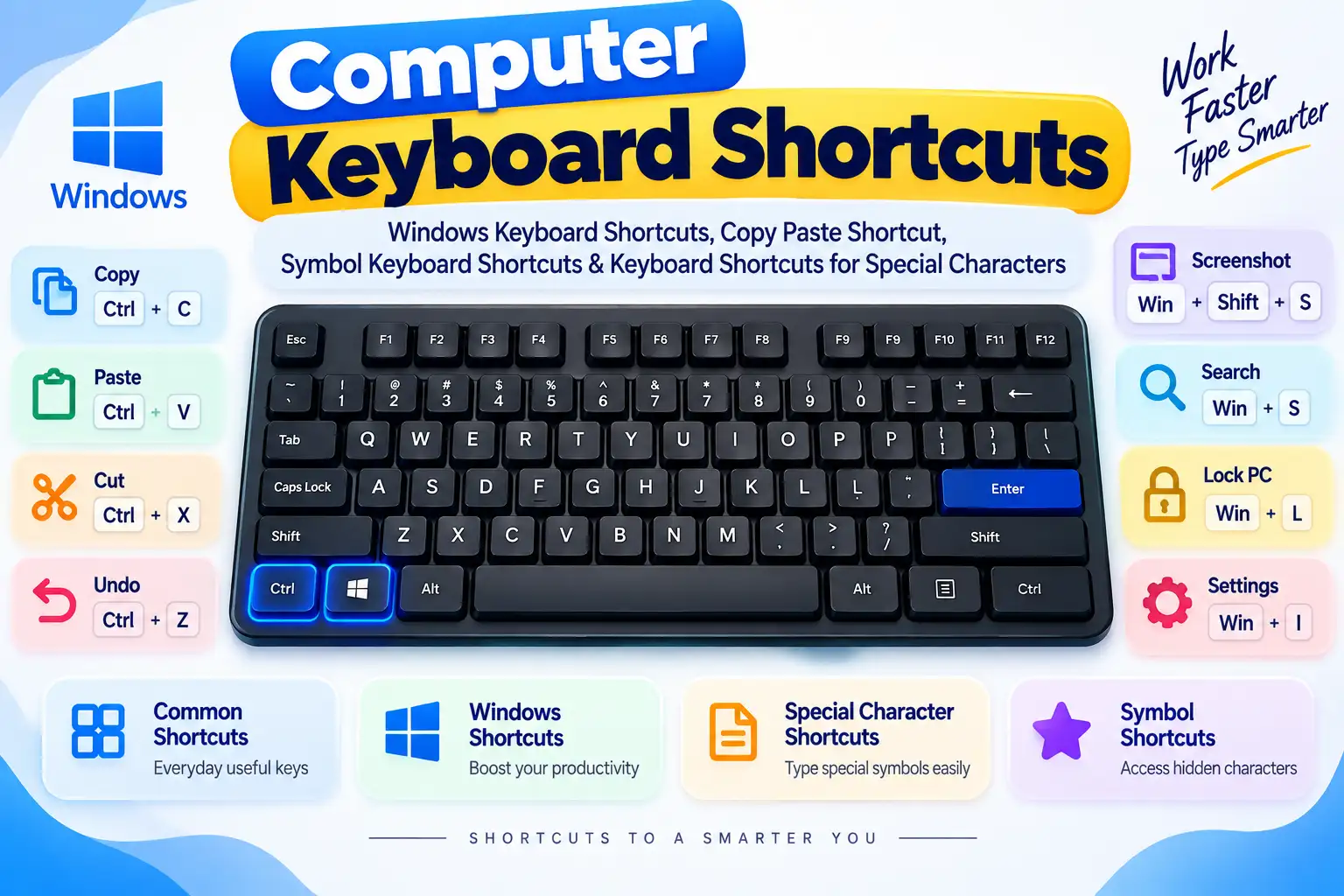
No single keystroke sequence is more synonymous with computing than the universal copy paste shortcut. Invented by computer scientist Larry Tesler during his pioneering tenure at Xerox PARC (Palo Alto Research Center) between 1973 and 1976, the copy, cut, and paste model fundamentally revolutionized text manipulation by introducing a modeless, non-destructive temporary storage buffer: the System Clipboard.
Why are C, V, X, and Z clustered together at the bottom-left corner of QWERTY keyboards? Tesler deliberately mapped these commands adjacent to the left-hand Ctrl and Shift modifiers so users could execute clipboard actions with one hand while navigating a physical mouse or tracking puck with the other:
| Action | Windows & Linux | macOS Shortcut | Buffer Behavior |
|---|---|---|---|
| Copy Selection | Ctrl + C | ⌘ + C | Duplicates highlighted object into RAM without modifying source. |
| Cut Selection | Ctrl + X | ⌘ + X | Copies object into RAM and simultaneously erases source instance. |
| Paste Selection | Ctrl + V | ⌘ + V | Writes clipboard contents into cursor point; retains source styling. |
| Paste as Plain Text | Ctrl + Shift + V | ⌘ + ⌘ + ⌘ + V | Strips formatting, custom fonts, colors, and inline CSS before inserting. |
| Clipboard History | Win + V | Third-Party Utility | Pops open scrollable history buffer of up to 25 recently copied items. |
| Undo Mistake | Ctrl + Z | ⌘ + Z | Reverts the most recent state alteration in the application stack. |
| Redo Action | Ctrl + Y | ⌘ + Shift + Z | Re-executes an undone change across editors, browsers, and design software. |
💡 Power User Secret: Windows Clipboard History (Win + V)
Most casual computer users believe the clipboard holds only one item at a time. In Windows 10 and Windows 11, pressing Win + V launches the Advanced Cloud Clipboard. Here, Windows logs up to 25 historical clips—including images, text snippets, and HTML links. You can pin frequently used legal disclaimers, email templates, or symbols (like copyright © or degrees °) so they remain accessible even after restarting your PC.
Windows Keyboard Shortcuts: Master Navigation & Shell Hotkeys
Microsoft Windows features an expansive ecosystem of built-in system hotkeys engineered to bypass lengthy GUI mouse journeys. Mastering essential Windows keyboard shortcuts provides unmatched speed when organizing workspaces, manipulating multi-window layouts, managing virtual desktops, and troubleshooting frozen applications.
Below is the verified master reference table for core Windows 11 and Windows 10 desktop shortcuts:
| Shortcut Key | Command Name | Operating System Function & Practical Use |
|---|---|---|
| Win + E | Open File Explorer | Launches a new File Explorer instance directly into 'This PC' or 'Quick Access'. |
| Win + L | Lock Computer | Instantly protects your session, blacks out monitors, and displays Windows Hello login. |
| Win + D | Show / Hide Desktop | Instantly minimizes all foreground windows; pressing again returns all windows to original positions. |
| Win + Shift + S | Snipping Tool Screenshot | Freezes screen for rectangular snip, freehand cut, window capture, or full screen grab. |
| Ctrl + Shift + Esc | Direct Task Manager | Instantly launches Task Manager without transitioning through the full-screen Security Screen. |
| Win + Tab | Task View & Desktops | Shows active timeline, all running windows, and lets you add or rename Virtual Desktops. |
| Alt + Tab | App Switcher Carousel | Cycles horizontally through active tasks with live thumbnails; hold Alt to preview. |
| Win + ⌘ / ⌘ | Snap Window Tiling | Snaps foreground application to left or right screen half; press Up/Down for quadrants. |
| Win + ⌘ / ⌘ | Maximize / Minimize | Maximizes window to full monitor canvas, or minimizes window down into the taskbar. |
| Win + I | Open Settings App | Launches Windows Settings for Bluetooth, Display, Apps, Network, and System Updates. |
| Win + A | Quick Settings Flyout | Opens slider controls for Wi-Fi networks, audio devices, brightness, and focus sessions. |
| Win + N | Notifications & Calendar | Pops out notifications tray, pending app alerts, and integrated interactive calendar. |
| Win + R | Run Command Dialog | Fast terminal launcher to open regedit, cmd, powershell, appdata, or calc directly. |
| Win + X | Power User Menu | Opens root administration context menu providing direct access to Disk Management & Terminal. |
| Alt + F4 | Close Active Program | Sends graceful close signal to foreground app; executed on empty desktop triggers Shut Down menu. |
| Win + . (Period) | Symbol & Emoji Picker | Pops up built-in Windows Unicode character viewer for instant symbol insertion. |
macOS Keyboard Shortcuts & Cross-Platform Translation Guide
Switching between Windows and Mac keyboards is one of the most common friction points for developers, designers, and office professionals. Because Apple hardware substitutes the Alt key with ? Option and utilizes ? Command as the primary execution modifier, understanding the direct mappings is essential.
Spotlight Search
Pressing ? Command + Space launches macOS Spotlight. Beyond finding files, Spotlight performs instant currency conversions, math calculations, dictionary lookups, and app launches without touching the dock.
Force Quit Applications
When an Apple application crashes into a spinning beachball, pressing ? Option + ? Command + Esc launches the Force Quit Applications dialog to immediately terminate rogue PID processes.
Quit vs. Close Window
On Mac, clicking the red window dot or pressing ? Command + W only closes the active window—the app remains running in RAM. To completely shut down the software, press ? Command + Q.
Mac Screenshot Crosshair
Pressing ⌘ + Shift + 4 turns the cursor into crosshairs to select a rectangular area; pressing the Spacebar immediately after captures a window with sleek drop-shadow effects.
Symbol Keyboard Shortcuts: How to Type Special Characters Without a Numeric Keypad
One of the most frequent challenges faced by modern laptop users is entering mathematical signs, legal marks, currency designations, and foreign accents without a dedicated physical 10-key numeric keypad. Fortunately, operating systems provide high-speed symbol keyboard shortcuts and intuitive keyboard shortcuts for special characters that bypass physical numpad constraints.
Here are the four primary techniques to type special characters rapidly on modern computers:
Method 1: Windows Built-In Symbol & Emoji Picker (Win + .)
On Windows 10 and Windows 11, holding the Windows Key and pressing Period (.) or Semicolon (;) opens the native Windows Symbol Palette. Click the O (Symbols) tab at the top to access six curated symbol drawers: General Punctuation (—, –, «, », “), Currency Symbols (€, £, ¥, ¢, ₹), Latin Symbols (é, ü, ñ, ç), Geometric Symbols (▲, ●, ■), Math Symbols (±, ÷, ×, √, ∞, ≠, ≤, ≥), and Supplemental Characters.
Method 2: Mac Option Key Combinations
On macOS, the ? Option key functions as a built-in typographical alternate layer. By combining Option (or Option + Shift) with standard letter keys, you can generate special characters instantly:
| Symbol | Symbol Name | Mac Option Shortcut | Windows Alt Code |
|---|---|---|---|
| © | Copyright Symbol | Option + G | Alt + 0169 |
| ® | Registered Trademark | Option + R | Alt + 0174 |
| ™ | Trademark Sign | Option + 2 | Alt + 0153 |
| ° | Degree Symbol | Option + Shift + 8 | Alt + 0176 |
| — | Em Dash (Full Width) | Option + Shift + - | Alt + 0151 |
| – | En Dash (Mid Width) | Option + - | Alt + 0150 |
| € | Euro Currency Sign | Option + Shift + 2 | Alt + 0128 |
| £ | British Pound Sign | Option + 3 | Alt + 0163 |
| • | Bullet Point | Option + 8 | Alt + 0149 |
| ± | Plus-Minus Sign | Option + Shift + = | Alt + 0177 |
| p | Greek Pi Constant | Option + P | Alt + 227 |
| v | Square Root Radical | Option + V | Alt + 251 |
| 8 | Infinity Lemniscate | Option + 5 | Alt + 236 |
Method 3: Microsoft Word Unicode Hex Conversion (Alt + X)
In Microsoft Word, Outlook, and LibreOffice Writer, you can convert any 4-character hexadecimal Unicode codepoint directly into its matching glyph. Type the 4 hex digits and immediately press Alt + X:
- Type
00A9and press Alt + X ? yields © (Copyright) - Type
00B0and press Alt + X ? yields ° (Degree) - Type
2014and press Alt + X ? yields — (Em Dash) - Type
221Eand press Alt + X ? yields 8 (Infinity) - Type
20ACand press Alt + X ? yields € (Euro Sign)
Method 4: 1-Click Instant Copy on WayToType
When you are in a web browser, social media dashboard, or code editor, you can click any of the interactive symbol cards above on this page or visit our dedicated Keyboard Symbols Directory and 1-Click Copy Paste Hub to instantly copy the exact Unicode character directly into your computer's clipboard.
Text Editing, Formatting & Word Processing Keyboard Shortcuts
Professional typists, software engineers, and editors rarely touch the arrow keys one letter at a time. By chaining modifier keys with navigation keys, you can navigate documents at superhuman speed. These computer keyboard shortcuts work uniformly across Google Docs, Microsoft Word, VS Code, Apple Pages, and web text areas:
| Editing Action | Windows / PC | macOS Shortcut | Productivity Benefit |
|---|---|---|---|
| Skip Word by Word | Ctrl + ⌘ / ⌘ | ⌘ + ⌘ / ⌘ | Jumps over entire words instead of sluggish character-by-character increments. |
| Select Word by Word | Ctrl + Shift + ⌘ / ⌘ | ⌘ + ⌘ + ⌘ / ⌘ | Highlights blocks of words without lifting hands to reach for a mouse. |
| Jump to Line Start/End | Home / End | ⌘ + ⌘ / ⌘ | Transports cursor instantly to index 0 or final character of active sentence. |
| Jump to Doc Start/End | Ctrl + Home / End | ⌘ + ⌘ / ⌘ | Instant leap to the very top header or very bottom footer of any document. |
| Delete Previous Word | Ctrl + Backspace | ⌘ + Delete | Erases preceding typo word in one keystroke instead of repetitive backspacing. |
| Delete Following Word | Ctrl + Delete | ⌘ + Fn + Delete | Erases the next word sitting directly in front of the cursor position. |
| Bold Formatting | Ctrl + B | ⌘ + B | Toggles bold font weight on selected words or next typed characters. |
| Italics Formatting | Ctrl + I | ⌘ + I | Toggles oblique italic styling on selected words or subsequent letters. |
| Underline Formatting | Ctrl + U | ⌘ + U | Applies or clears solid baseline underline styling on text strings. |
| Insert Hyperlink | Ctrl + K | ⌘ + K | Opens URL insertion box to convert highlighted words into clickable links. |
Web Browser Keyboard Shortcuts: Google Chrome, Edge, Safari & Firefox
Modern knowledge workers spend over 70% of their workday inside web browsers. Navigating tabs, searching pages, clearing cache, and inspecting web elements using dedicated hotkeys saves hours of cumulative time every week. Because all major browsers adhere to the Chromium and W3C UI standards, these shortcuts work identically in Google Chrome, Microsoft Edge, Brave, Mozilla Firefox, and Apple Safari:
| Shortcut Key (Win) | macOS Key | Command Name | Operational Effect |
|---|---|---|---|
| Ctrl + T | ⌘ + T | New Tab | Spawns a new tab and immediately focuses the omnibox address bar. |
| Ctrl + Shift + T | ⌘ + Shift + T | Reopen Closed Tab | Brings back accidentally closed tabs in exact chronological sequence with state intact. |
| Ctrl + W | ⌘ + W | Close Current Tab | Closes active tab; pressing Ctrl + Shift + W closes the entire window. |
| Ctrl + L (or Alt + D) | ⌘ + L | Highlight Address Bar | Selects entire current page URL for immediate copying or web search query entry. |
| Ctrl + Shift + N | ⌘ + Shift + N | Incognito / Private Window | Launches isolated session that does not record browsing history or cookie cache. |
| Ctrl + F5 | ⌘ + Shift + R | Hard Refresh | Bypasses local disk cache, re-downloading all latest HTML, CSS, and JS assets. |
| Ctrl + 1 to 8 | ⌘ + 1 to 8 | Jump to Tab Index | Directly navigates to tab number 1 through 8 in the active window horizontal strip. |
| Ctrl + 9 | ⌘ + 9 | Jump to Last Tab | Instantly shifts focus to the very last right-most tab regardless of total count. |
| Ctrl + + / - | ⌘ + + / - | Zoom In / Zoom Out | Increases or decreases page viewport scale; press Ctrl + 0 to reset to 100%. |
| F12 (or Ctrl + Shift + I) | ⌘ + ⌘ + I | Developer DevTools | Opens developer tools console, DOM inspector, network waterfall, and storage inspector. |
Function Keys (F1 through F12) Explained: Standard PC Operations
Occupying the very top row of IBM-compatible keyboards since the landmark 101-key Model M layout debuted in 1985, the Function Keys (F1 to F12) provide specialized single-key triggers across operating systems, software suites, and BIOS firmware. Modern laptops often dual-purpose these keys for hardware toggles (volume, screen brightness, keyboard backlighting) via the Fn key. Below is the canonical software mapping for each function key:
| Key | Core Function | Operating System / App Role | Notable Combo |
|---|---|---|---|
| F1 | Help System | Pops up official help center documentation in active software window. | Win + F1 (Windows Support) |
| F2 | Rename Object | Instantly begins rename field on highlighted file, folder, or desktop icon. | Ctrl + F2 (Print Preview) |
| F3 | Search Mode | Focuses search bar in File Explorer or finds next occurrence in web browsers. | Shift + F3 (Toggle Case) |
| F4 | Address Bar / Close | Reveals address dropdown in File Explorer; combined with Alt closes programs. | Alt + F4 (Close Active App) |
| F5 | Refresh / Run | Reloads active web page or folder; starts slide show in Microsoft PowerPoint. | Ctrl + F5 (Hard Cache Bypass) |
| F6 | Cycle Panes | Moves keyboard focus between web page content, taskbar buttons, and address bar. | Shift + F6 (Cycle Backward) |
| F7 | Spell Check | Launches spelling and grammar check in Microsoft Word; enables Caret Browsing. | Shift + F7 (Open Thesaurus) |
| F8 | Selection / Boot | Expands selection in Word; pressed repeatedly enters Windows Safe Mode. | Startup Boot Recovery |
| F9 | Recalculate | Forces complete recalculation of all formulas in Microsoft Excel workbooks. | Ctrl + F9 (Insert Field) |
| F10 | Menu Bar | Activates software menu bar; combined with Shift functions as a Right-Click context menu. | Shift + F10 (Context Menu) |
| F11 | Fullscreen | Toggles immersive fullscreen display mode in Chrome, Firefox, Edge, and media players. | Shift + F11 (New Excel Sheet) |
| F12 | Save As / DevTools | Opens 'Save As' file dialog in Office applications; opens DevTools in web browsers. | Ctrl + F12 (Open Document) |
Windows vs. Mac Keyboard Shortcuts: Side-by-Side Comparison Matrix
For professionals who alternate between desktop PCs and MacBooks, the following side-by-side comparison matrix indexes the top 20 most crucial computational operations across both operating system environments:
| User Intent & Action | Windows PC Keystroke | Apple Mac Keystroke |
|---|---|---|
| Copy Selection | Ctrl + C | ⌘ + C |
| Paste Clipboard Content | Ctrl + V | ⌘ + V |
| Cut Selected Content | Ctrl + X | ⌘ + X |
| Undo Last Action | Ctrl + Z | ⌘ + Z |
| Redo Undone Action | Ctrl + Y | ⌘ + Shift + Z |
| Select All Items | Ctrl + A | ⌘ + A |
| Find on Page or Document | Ctrl + F | ⌘ + F |
| Save Document File | Ctrl + S | ⌘ + S |
| Print Document / Page | Ctrl + P | ⌘ + P |
| New Browser Tab | Ctrl + T | ⌘ + T |
| Close Active Tab | Ctrl + W | ⌘ + W |
| Reopen Closed Tab | Ctrl + Shift + T | ⌘ + Shift + T |
| Lock Workstation Screen | Win + L | ^ + ⌘ + Q |
| File Manager Window | Win + E | ⌘ + N (in Finder) |
| System Task Manager | Ctrl + Shift + Esc | ⌘ + ⌘ + Esc |
| Interactive Screen Snip | Win + Shift + S | ⌘ + Shift + 4 |
| Global Search Box | Win + S | ⌘ + Space |
| Symbol & Emoji Palette | Win + . | ^ + ⌘ + Space |
| Switch Running Apps | Alt + Tab | ⌘ + Tab |
| Close Program Entirely | Alt + F4 | ⌘ + Q |
Troubleshooting Keyboard Shortcuts: What to Do When Hotkeys Stop Working
Few computer glitches are more irritating than pressing Ctrl + C or Win + Shift + S only to encounter complete silence or an unintended character. When keyboard shortcuts fail to respond, the issue almost always stems from one of four root causes:
1. Function Lock (Fn Lock) Inversion
On Dell, HP, Lenovo, and ASUS laptops, the F1–F12 keys default to media functions (volume, screen brightness). If pressing Alt + F4 lowers your volume instead of closing your window, your keyboard has Fn Lock active. Press Fn + Esc or toggle Action Keys in your laptop BIOS.
2. Sticky Keys or Filter Keys Active
Pressing the Shift key 5 consecutive times triggers Windows Sticky Keys, altering how modifier keys latch into the system stack. To disable: Open Windows Settings ? Accessibility ? Keyboard ? turn off Sticky Keys and Filter Keys.
3. Background Gaming Overlays
Third-party utilities like Discord Overlay, NVIDIA GeForce Experience ShadowPlay (Alt + Z), AMD Radeon Software, or streaming software (OBS Studio) register global keyboard hooks that swallow shortcuts before your active text processor can see them.
4. Keyboard Layout Swapping
Pressing Alt + Shift or Win + Space accidentally switches Windows keyboard layout from US QWERTY to UK QWERTY, AZERTY, or Dvorak, shifting keys like @, ", and Z to unexpected locations.
Frequently Asked Questions About Computer & Windows Keyboard Shortcuts
Find quick, authoritative answers to the most common questions regarding computer hotkeys, copy-paste mechanisms, and symbol shortcuts:
Related Symbol Directories, Alt Codes & Typing Guides
Accelerate your typing mastery by exploring our specialized symbol encyclopedias, Unicode character directories, and in-depth typing guides:
Keyboard Symbols Master List
Complete reference table and 1-click copy tool for all standard keyboard symbols, shift punctuation, and glyph names.
Technical Symbols
Mac modifier key glyphs, electrical schematic symbols, grounding signs, and engineering GD&T drafting characters.
Alt Codes Master Reference
Comprehensive directory of Windows numeric keypad Alt codes for entering special characters and symbols.
1-Click Copy Paste Hub
Over 1,000+ popular emojis, arrows, stars, currency signs, and aesthetic symbols ready for social media.
Math Symbols Directory
Complete collection of mathematical operators, calculus integrals, summation signs, and Greek variables.
Accent Keyboard
Type Spanish, French, German, and foreign accented letters and acute vowels with 1-click clipboard copying.