How to Type Accented Letters on Windows, Mac & Word (A–Z Shortcuts, Alt Codes & Keyboard Guide)
Master how to type accented letters (á, é, í, ó, ú, ñ, ü, ç, à, è, î, å, ä, ö, ž, ÿ) on any keyboard! Whether you need Spanish accents, French diacritics, German umlauts, Portuguese tildes, or Nordic letters, use our 1-click copy tools below or follow our verified shortcuts for Windows Alt codes, Mac Option dead keys, Microsoft Word formulas, Google Docs, US-International keyboard, HTML entities, and our complete suite of 26 dedicated A to Z guides.
Master Comparison: How to Type Accents Across Operating Systems
Writing international names, academic papers, multilingual documents, and foreign language homework in Spanish, French, German, Italian, Portuguese, Polish, Czech, Swedish, and Vietnamese requires typing diacritical marks. Below is an overarching comparison of how each major platform handles accented characters:
Platform / Environment
Primary Method
Secondary Method
Best For
Windows 11 / 10
Alt Codes (e.g. Alt+160 = á)
US-International Layout or Emoji Panel (Win+.)
Desktops & keyboards with physical number pad
Apple macOS
Option Key Dead Keys (Opt+e, then letter)
Press-and-Hold key popup menu
All MacBooks, iMacs & Magic Keyboards
Microsoft Word / Office
Ctrl Key Shortcuts (Ctrl+', then letter)
Unicode Alt+X (e.g. 00E9 + Alt+X = é)
Word documents, Outlook emails & PowerPoint
Google Docs & Slides
Insert > Special Characters
Auto-Substitutions (Tools > Preferences)
Chromebooks & cloud collaborative editing
iOS (iPhone & iPad)
Press & Hold Virtual Key
Custom Multilingual Keyboards
Touchscreen mobile writing & messaging
Android (Gboard & Samsung)
Press & Hold Key Strip
Gboard Multilingual Auto-Correction
Android smartphones & tablets
Web Development (HTML)
Named Character Entities (é)
Decimal / Hex Entities (é)
HTML5, CSS content, JavaScript strings
WINDOWS OS
How to Type Accented Letters on Windows (4 Methods)
Windows offers four primary methods to input accented letters depending on whether your keyboard has a physical numeric keypad or whether you prefer dead keys:
Windows Alt Codes (Numeric Keypad Method)
The classic Windows method requires a dedicated 10-key numeric keypad on the right side of your keyboard. Ensure Num Lock is toggled ON, hold down either Alt key, type the numeric sequence, and release Alt:
For laptops without a numpad, the US-International keyboard is the fastest and most ergonomic typing system. When enabled in Windows Settings → Time & Language → Language & Region → Keyboard Options:
Press Windows Key + . (Period) or Win + ; on any Windows 10/11 application. Click the Symbols (Ω) tab at the top and select Latin Symbols to browse and click any accented character.
APPLE MACOS
How to Type Accented Letters on Mac (macOS)
Apple macOS provides the most intuitive and streamlined native accent-typing experience of any desktop operating system:
The Mac Option Key Dead System
Hold down the Option key, press the modifier key corresponding to the accent mark you want, release both, and then type the letter:
Accent Type
Mac Shortcut Combination
Target Letters Output
Example Output
Acute Accent (´)
Option + e, then release and press letter
a, e, i, o, u, y, c, n, r, s, z
á, é, í, ó, ú, ý, c, n
Grave Accent (`)
Option + ` (grave), then press letter
a, e, i, o, u
à, è, ì, ò, ù
Circumflex Accent (^)
Option + i, then press letter
a, e, i, o, u, w, y, c, g, h, j, s
â, ê, î, ô, û, w, y
Umlaut / Diaeresis (¨)
Option + u, then press letter
a, e, i, o, u, y
ä, ë, ï, ö, ü, ÿ
Tilde Accent (~)
Option + n, then press letter
a, n, o
ã, ñ, õ
Cedilla (¸)
Option + c (direct key)
c, C
ç (Capital: Opt+Shift+C = Ç)
Ring Above (°)
Option + k, then press letter
a, A, u, U
å (Capital: Opt+Shift+K = Å)
German Eszett (ß)
Option + s (direct key)
s
ß (Capital: Opt+Shift+S = ẞ)
Slash / Stroke (ø)
Option + o (direct key)
o, O
ø (Capital: Opt+Shift+O = Ø)
The Press-and-Hold Menu (Built-in on all Macs)
On any modern MacBook or Mac desktop, press and hold down the letter key on your keyboard. A small contextual menu displaying numbered variations will appear above the cursor. Type the corresponding number key or click the glyph with your trackpad to insert it.
MICROSOFT WORD
How to Type Accented Letters in Microsoft Word & Office Suite
Microsoft Word includes dedicated modifier shortcuts built directly into the word processor on both Windows and macOS:
Accent Type
Word Keyboard Combination
Example Output
Capital Variant Method
Acute Accent (´)
Ctrl + ', then type letter
á, é, í, ó, ú, ý
Ctrl + ', then Shift + letter → Á, É
Grave Accent (`)
Ctrl + `, then type letter
à, è, ì, ò, ù
Ctrl + `, then Shift + letter → À, È
Circumflex Accent (^)
Ctrl + Shift + ^, then type letter
â, ê, î, ô, û
Ctrl + Shift + ^, then Shift + letter → Â, Ê
Umlaut / Diaeresis (¨)
Ctrl + Shift + :, then type letter
ä, ë, ï, ö, ü, ÿ
Ctrl + Shift + :, then Shift + letter → Ä, Ö
Tilde Accent (~)
Ctrl + Shift + ~, then type letter
ã, ñ, õ
Ctrl + Shift + ~, then Shift + letter → Ñ, Ã
Cedilla (¸)
Ctrl + ,, then type c
ç
Ctrl + ,, then Shift + C → Ç
Ring Above (°)
Ctrl + Shift + @, then type a
å
Ctrl + Shift + @, then Shift + A → Å
Microsoft Word Unicode Hex Converter (Alt + X)
Type the 4-digit hexadecimal code directly into your document and immediately press Alt + X:
00E1 + Alt + X → á | 00C1 + Alt + X → Á
00E9 + Alt + X → é | 00C9 + Alt + X → É
00F1 + Alt + X → ñ | 00D1 + Alt + X → Ñ
00FC + Alt + X → ü | 00DC + Alt + X → Ü
00E7 + Alt + X → ç | 00C7 + Alt + X → Ç
GOOGLE DOCS & MOBILE
How to Type Accented Letters in Google Docs, iOS & Android
Typing Accents in Google Docs
Method 1 (Special Characters Palette): Click Insert in the top menu bar → select Special Characters → choose Latin from the dropdown or draw the accented symbol in the search box.
Method 2 (Automatic Substitutions): Go to Tools → Preferences → Substitutions. Set a shortcut like :e: to automatically replace with é, or :n: with ñ.
Method 3 (Operating System Dead Keys): Enable the US-International keyboard layout on Windows/Chromebook, or use native Option dead keys on Mac.
Mobile Virtual Keyboards (iOS & Android)
On iPhones, iPads, and Android smartphones (Gboard, Samsung Keyboard, SwiftKey):
Step 1: Tap and hold down the letter you wish to accent (e.g. hold e).
Step 2: A popup strip will appear showing all variations: é, è, ê, ë, e, e, e.
Step 3: Without lifting your thumb, slide across to highlight the desired letter, then release.
WEB DEVELOPMENT
HTML Entity Codes & Developer Cheat Sheet for Accents
For web designers, software engineers, and digital content creators, HTML provides both named character entities and numerical Unicode escape sequences:
Character
HTML Named Entity
HTML Decimal Entity
Unicode Code Point
CSS Escape
JavaScript / JSON
é / É
é / É
é / É
U+00E9 / U+00C9
\\00E9
"\\u00E9"
á / Á
á / Á
á / Á
U+00E1 / U+00C1
\\00E1
"\\u00E1"
í / Í
í / Í
í / Í
U+00ED / U+00CD
\\00ED
"\\u00ED"
ó / Ó
ó / Ó
ó / Ó
U+00F3 / U+00D3
\\00F3
"\\u00F3"
ú / Ú
ú / Ú
ú / Ú
U+00FA / U+00DA
\\00FA
"\\u00FA"
ñ / Ñ
ñ / Ñ
ñ / Ñ
U+00F1 / U+00D1
\\00F1
"\\u00F1"
ü / Ü
ü / Ü
ü / Ü
U+00FC / U+00DC
\\00FC
"\\u00FC"
ç / Ç
ç / Ç
ç / Ç
U+00E7 / U+00C7
\\00E7
"\\u00E7"
à / À
à / À
à / À
U+00E0 / U+00C0
\\00E0
"\\u00E0"
è / È
è / È
è / È
U+00E8 / U+00C8
\\00E8
"\\u00E8"
ô / Ô
ô / Ô
ô / Ô
U+00F4 / U+00D4
\\00F4
"\\u00F4"
ã / Ã
ã / Ã
ã / Ã
U+00E7 / U+00C7
\\00E7
"\\u00E7"
å / Å
å / Å
å / Å
U+00E5 / U+00C5
\\00E5
"\\u00E5"
ß / ß
ß / &SZlig;
ß / ẞ
U+00DF / U+1E9E
\\00DF
"\\u00DF"
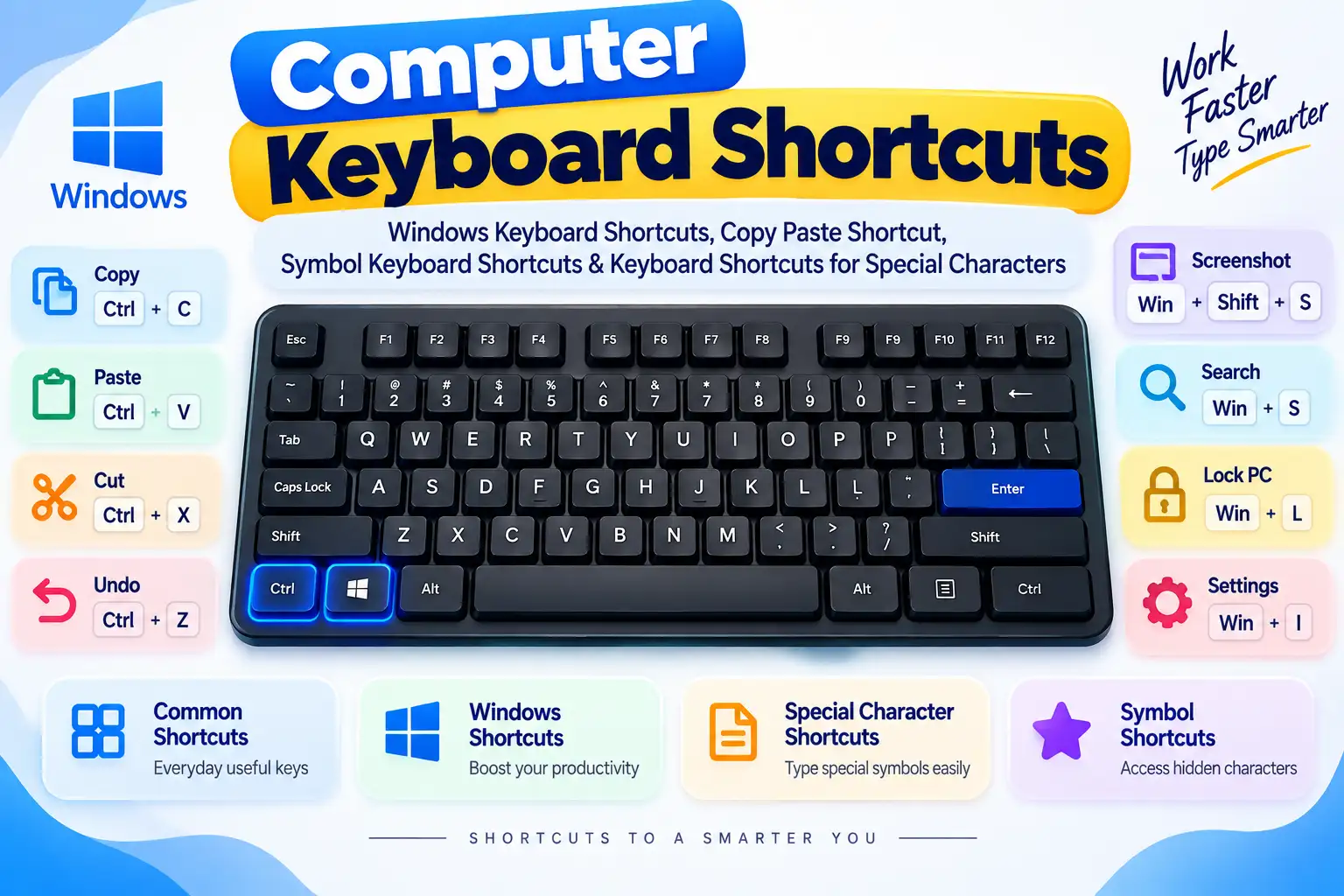
Visual Guide: Master accented vowels and dead key combinations on physical keyboards
FREQUENTLY ASKED QUESTIONS
Frequently Asked Questions About Typing Accented Letters
On Mac, use Option key dead combinations (such as Option + e for acute, Option + u for umlaut, Option + n for tilde) or press and hold the letter key. On Windows, use Alt codes on the numeric keypad (e.g., Alt + 130 for é, Alt + 164 for ñ) or switch to the US-International keyboard layout where punctuation marks act as dead keys.
If your laptop lacks a dedicated numpad, you can: 1) Switch to the US-International keyboard layout in Windows Settings; 2) Use the Windows Emoji/Symbol Panel by pressing Win + . (Period); 3) In Microsoft Word, type the Unicode hex code followed by Alt + X; or 4) Use 1-click copy tools like WayToType's Accent Keyboard.
On macOS, hold the Option key and press an accent trigger key, then release both keys and press the target letter: Option + e for Acute (é, á, í, ó, ú), Option + ` for Grave (è, à, ì, ò, ù), Option + i for Circumflex (ê, â, î, ô, û), Option + u for Umlaut/Diaeresis (ë, ä, ï, ö, ü), Option + n for Tilde (ñ, ã, õ), and Option + c for Cedilla (ç).
In Microsoft Word, use Ctrl key combinations: Ctrl + ' (Acute), Ctrl + ` (Grave), Ctrl + Shift + ^ (Circumflex), Ctrl + Shift + : (Umlaut), Ctrl + Shift + ~ (Tilde), and Ctrl + , (Cedilla), followed by the letter. In Google Docs, use Insert > Special Characters or install the US-International keyboard.
When US-International is enabled, five punctuation keys become 'dead keys': Apostrophe (') creates acute accents (á, é, í, ó, ú), Backtick (`) creates grave accents (à, è, ì, ò, ù), Tilde (~) creates tildes (ã, ñ, õ), Caret (^) creates circumflexes (â, ê, î, ô, û), and Double Quote (") creates umlauts (ä, ë, ï, ö, ü). Type a space after the punctuation mark if you want the literal punctuation symbol.
HTML supports named character entities such as é (é), á (á), ñ (ñ), ü (ü), ç (ç), ô (ô), and à (à), as well as decimal entity codes like é for é and ñ for ñ.
On Mac, press the Option dead key combination and then type Shift + letter (e.g., Option + e then Shift + E = É). In Word, press Ctrl + ' then Shift + letter. On Windows with Alt codes, use uppercase numeric codes (e.g., Alt + 0193 for Á, Alt + 0201 for É, Alt + 0209 for Ñ, Alt + 0220 for Ü).
On any touchscreen virtual keyboard (Apple iOS, Gboard, Samsung Keyboard), press and hold down the letter you wish to accent. A popup diacritics bubble with all available accent marks will appear above your finger. Slide your finger to select the desired character and release.
Explore all 26 dedicated master guides covering every vowel and consonant in the Latin alphabet with exhaustive linguistic breakdowns, alt codes, and shortcuts: