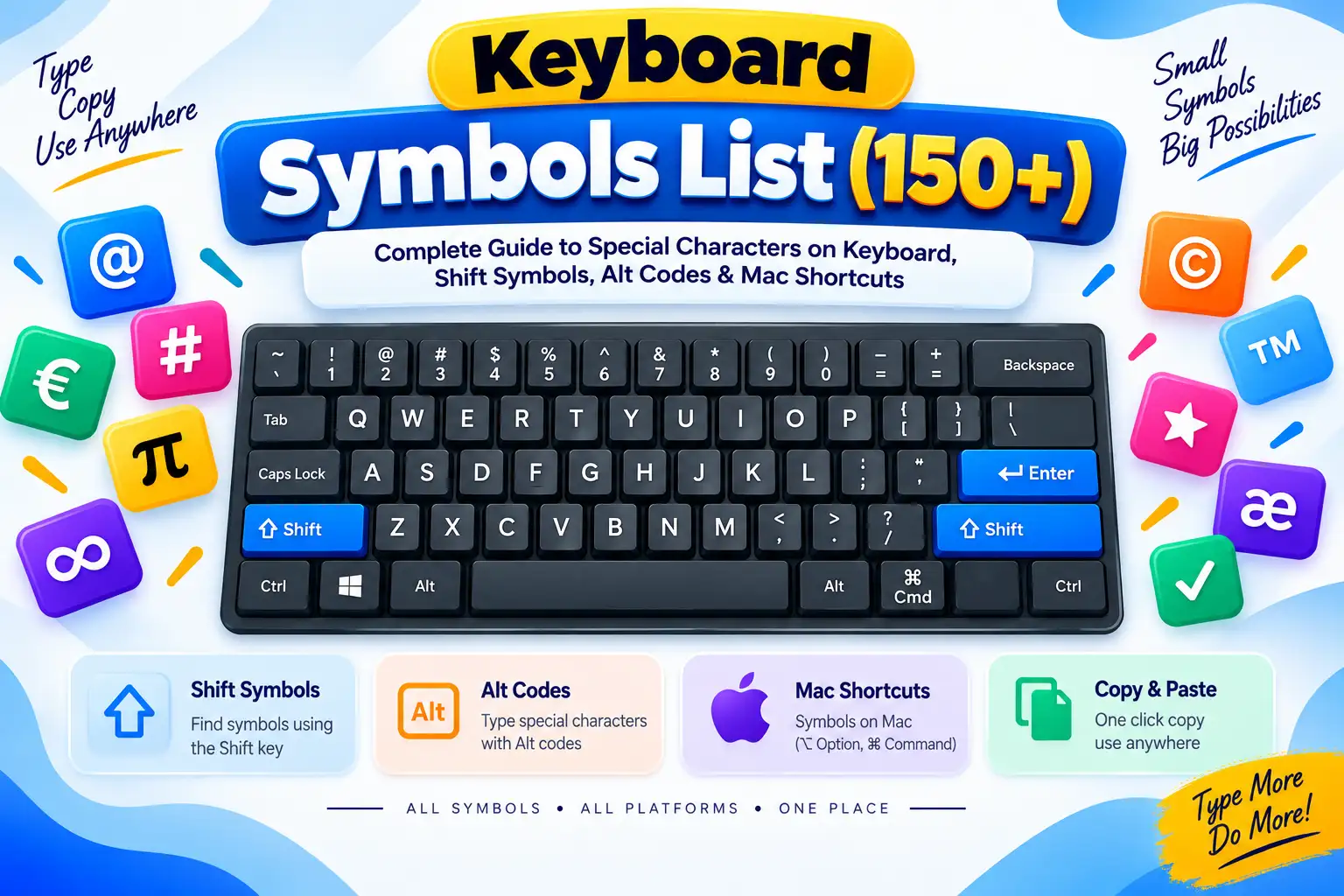
How to Type # (Hashtag / Number Sign) on Keyboard: Windows, Mac, UK Keyboards & Alt Code
Wondering how to type the hashtag symbol (#) on your computer keyboard or laptop? Whether you are on Windows 11, macOS, a UK ISO keyboard, Chromebook, Linux, Microsoft Word, Excel, HTML, or mobile, this comprehensive master guide provides instant 1-click copy functionality, exact hashtag keyboard shortcuts (Shift + 3 / Option + 3), Alt code Alt + 35, and layout fixes for every operating system.
Tested on Windows 11 & macOS Sequoia
Written & Verified by Rakesh•Verified Accurate: October 2026
The hashtag symbol (#), officially designated in the Unicode Standard as the Number Sign and historically referred to as the octothorpe, pound sign, hash mark, or crosshatch, is one of the most frequently used characters on modern keyboards. From social media tagging on X/Twitter, Instagram, and TikTok to programming comments in Python and CSS ID selectors, learning how to type # on your keyboard is an essential skill.
Use the table below for a quick overview of the exact key combinations required to type the hashtag symbol across operating systems, physical keyboard regions, and programming environments:
Operating System / Application
Keyboard Layout / Environment
Keyboard Shortcut / Method
Glyph Output
Windows PC
US QWERTY Layout
Shift + 3
#
Windows PC
UK / British ISO Layout
Shift + ' (next to Enter) OR AltGr + 3
#
Windows PC (Numpad)
Numeric Keypad (Alt Code)
Hold Alt + type 35 on Numpad
#
Apple Mac (macOS)
US Keyboard Layout
Shift + 3
#
Apple Mac (macOS)
UK / British Keyboard Layout
Option + 3 (or Alt + 3)
#
Google Chromebook
US / UK Keyboard Layout
Shift + 3 (US) or Shift + ' (UK)
#
Google Chromebook
ChromeOS Hex Input
Ctrl + Shift + U, then 23, then Enter
#
Linux (Ubuntu / Debian)
Standard QWERTY / ISO
Shift + 3 (US) or AltGr + 3 (UK)
#
Microsoft Word
Windows Unicode Hex Conversion
Type 0023, then press Alt + X
#
iPhone / iPad (iOS)
Touchscreen Keyboard
Tap 123 button → Tap #
#
Android (Gboard)
Touchscreen Keyboard
Tap ?123 button → Tap #
#
HTML Web Documents
Entities
# / # / #
#
WINDOWS OS
How to Type # on Windows 10 and Windows 11 (4 Methods)
Windows operating systems support multiple methods for typing the hashtag / number sign symbol. Choose the method that best matches your physical keyboard hardware and setup:
Method 1: The US QWERTY Keyboard Shortcut (Shift + 3)
If your computer keyboard uses the standard US QWERTY layout (common in North America, Latin America, Asia, and international markets), typing the hashtag symbol requires only a simple two-key combination:
1
Locate Shift: Locate the Shift key on either the left or right side of your keyboard.
2
Hold Shift: Press and hold the Shift key.
3
Press 3: Press the number 3 key located on the top row of number keys (above the E and R letters).
4
Release Keys: Release both keys. The # symbol will appear immediately at your text cursor position.
💡 Note on Top Row vs Numeric Keypad
Make sure you press the number 3 on the main top number row, not on the separate numeric keypad. If you want to use the numeric keypad, use the Alt code method below.
Method 2: UK & European Windows ISO Layouts (Shift + ' or AltGr + 3)
On physical UK English ISO keyboards (used across the United Kingdom, Ireland, and Commonwealth nations), the number 3 key is printed with £ above the 3. Therefore, pressing Shift + 3 produces a British Pound sign (£) instead of a hashtag.
To type the hashtag symbol on a UK Windows keyboard, use one of these two verified methods:
Dedicated UK Hashtag Key: Locate the key containing the single quote ('), double quote ("), or hashtag (#) symbol located immediately to the left of the main Enter / Return key. Hold Shift and press this key (Shift + ').
AltGr Combination: Hold down the right-hand AltGr key (located to the right of the Spacebar) and press the number 3 key (AltGr + 3). Alternatively, press Ctrl + Alt + 3.
Method 3: Windows Alt Code 35 (Numeric Keypad)
Every Windows PC supports universal character input via Windows Alt Codes. Using Alt code 35 allows you to type `#` regardless of your active keyboard language layout, software settings, or region:
1
Enable Num Lock: Ensure that Num Lock is activated on your keyboard (the Num Lock LED light is illuminated).
2
Hold Alt: Press and hold down the left Alt key.
3
Type 35: While holding Alt, type 3 then 5 sequentially on the 10-key numeric keypad.
4
Release Alt: Release the Alt key. The # character will instantly display.
Method 4: Windows Emoji and Symbol Picker Panel (Win + .)
Windows 10 and Windows 11 feature a built-in emoji and special character picker for laptops without a numpad:
Press the Windows Key + . (Period) or Win + ; (Semicolon) on your keyboard.
In the popup overlay box, click the Symbols icon (the O omega symbol tab at the top).
Select the General Punctuation or Math Symbols subcategory.
Click on the hashtag symbol # to insert it directly into your active document or web page.
APPLE MACOS
How to Type # on Apple Mac Keyboards (macOS)
Apple Mac desktop and laptop computers running macOS (MacBook Air, MacBook Pro, iMac, Mac mini, Mac Studio) feature distinct keyboard shortcuts based on regional hardware configurations:
Method 1: Standard US Apple Mac Keyboard Shortcut (Shift + 3)
On Apple Mac keyboards manufactured for North America and standard US QWERTY markets, simply hold Shift + and press the number 3 key on the top row of your Mac keyboard.
Method 2: UK & British Mac Keyboards (Option + 3 / Alt + 3)
If you are using a British / UK ISO Mac keyboard (which features a vertical Enter key and a £ symbol printed above the number 3), pressing Shift + 3 will type a pound currency sign (£).
To type the hashtag symbol on a British Apple Mac keyboard:
Press and hold the Option + key (also labeled as Alt +).
Press the number 3 key.
Release both keys. The hashtag symbol # will instantly appear on your screen.
💡 Mac Keyboard Rule of Thumb
On UK Macs:Shift + 3 = £, while Option ? + 3 = #. On US Macs:Shift + 3 = #, while Option ? + 3 = £.
Method 3: macOS Character Viewer (Ctrl + Cmd + Space)
Press Control ^ + Command + + Spacebar to open the macOS Character Viewer.
Type "number sign" or "hashtag" into the search bar in the top right corner.
Double-click the # symbol to insert it into Pages, Safari, Mail, or Notes.
CHROMEOS & LINUX
How to Type # on Google Chromebooks and Linux
Google Chromebooks (ChromeOS)
Here is how to type the hashtag symbol on any Chromebook model (Acer, ASUS, HP, Lenovo, Samsung, Dell, Pixelbook):
US Chromebook Layout: Press and hold Shift, then press 3 on the top number row.
UK Chromebook Layout: Press and hold Shift, then press the key containing ' (single quote) located next to Enter, or press AltGr + 3.
ChromeOS Unicode Hex Shortcut: Press Ctrl + Shift + U simultaneously. An underlined u will appear. Type 23 and press Enter.
Linux (Ubuntu, Fedora, Debian, Arch)
Standard QWERTY Shortcut: Press Shift + 3 on US layouts, or AltGr + 3 / Shift + ' on UK ISO layouts.
Universal GTK Direct Unicode Entry: Press Ctrl + Shift + U, type 23, and hit Enter.
Compose Key Sequence: Press Compose followed by # + # or N + O to generate #.
OFFICE & PRODUCTIVITY
Typing # in Microsoft Word, Excel, PowerPoint & Google Docs
Microsoft Word: Alt+X Hex Code Conversion
In Microsoft Word for Windows, you can convert Unicode hex values directly into text characters:
1
Type the hexadecimal code 0023 directly into your Word document.
2
Immediately press Alt + X. Word will instantly transform 0023 into the hashtag symbol #.
Microsoft Excel: Cell Formatting & Error Code Guide
In Microsoft Excel, the hashtag character # serves two distinct functions: custom number formatting placeholders and formula error indicators:
Excel Context
Code / Representation
Meaning & Practical Explanation
Custom Formatting
#,##0.00
Acts as a digit placeholder that displays optional digits without showing trailing zeros.
Phone/SSN Format
(###) ###-####
Formats raw numbers into standardized US phone number strings automatically.
Column Width Error
#####
Indicates the cell column width is too narrow to display the formatted number. Double-click the column boundary to expand.
Ref Error
#REF!
Formula reference is invalid or deleted.
Value Error
#VALUE!
Formula contains mismatched data types (e.g. adding text to numbers).
Not Available Error
#N/A
Lookup formula (VLOOKUP, XLOOKUP, MATCH) failed to locate a target value.
Google Docs: Custom AutoCorrect Text Substitutions
Open Google Docs and navigate to Tools → Preferences.
Click on the Substitutions tab.
In the Replace column, type (hash). In the With column, paste #.
Click OK. Now typing (hash) automatically expands into #.
MOBILE KEYBOARDS
How to Type # on Mobile Keyboards (iPhone, iPad & Android)
iPhone and iPad (iOS / iPadOS)
Tap any text input box to bring up the iOS soft keyboard.
Tap the 123 key in the bottom left corner to switch to the numeric layout.
Tap the # key located on the middle row.
Alternatively, tap #+= for extended punctuation symbols if you are in alternate symbol mode.
💡 iOS Text Replacement Shortcut
Go to Settings → General → Keyboard → Text Replacement. Add a shortcut with Phrase = # and Shortcut = hash to type hashtags instantly anywhere!
Android Devices (Gboard & Samsung Keyboard)
Tap a text field to open Gboard or Samsung Keyboard.
Tap the ?123 button on the lower left.
Locate and tap the # key. On many Android layouts, holding down the 3 key on the main QWERTY layout also types # without switching screens.
DEVELOPER CHEAT SHEET
Developer & Web Syntax Master Reference for #
The hashtag / number sign character plays vital structural roles across computer languages, web development frameworks, and database architectures:
Language / Tech Stack
Code / Syntax Example
Functional Purpose & Description
HTML Named Entity
#
Standard HTML5 named entity for safe rendering in Web pages.
HTML Decimal Entity
#
Universal ASCII decimal representation for Web documents.
HTML Hex Entity
#
Hexadecimal Unicode code point entity.
CSS ID Selector
#main-header { color: #fff; }
Selects elements with specific unique HTML ID attributes.
CSS Hex Colors
background-color: #3b82f6;
Prefixes 3-digit, 6-digit, or 8-digit RGB/RGBA hexadecimal color codes.
Python Comments
# This is a Python comment line
Denotes single-line code comments ignored by the interpreter.
Bash Shebang Line
#!/usr/bin/env bash
Specifies program interpreter in Unix/Linux executable scripts.
C / C++ Preprocessor
#include <stdio.h>
Signals preprocessor directives before code compilation.
C# / F# Language
#region Logic ... #endregion
Organizes collapsible code blocks in Visual Studio IDEs.
The UK vs US Keyboard Mystery: Why Shift + 3 Types £
One of the single most common sources of confusion for computer users in the United Kingdom, Canada, Australia, and Europe is discovering that pressing Shift + 3 produces a British Pound sign (£) instead of a hashtag (#).
This discrepancy stems from the difference between the ANSI standard layout (used in the US) and the ISO standard layout (used in the UK and internationally). When IBM and Apple created regional physical keyboards for the British market, the £ symbol was assigned to the shifted 3 position because financial transactions in Great Britain required easy access to the local currency symbol.
Physical Key Location
US QWERTY Layout Output
UK ISO Layout Output
Shift + 2
@ (At Symbol)
" (Double Quote)
Shift + 3
# (Hashtag / Number Sign)
£ (British Pound Sign)
Shift + ' (Key left of Enter)
" (Double Quote)
# (Hashtag / Number Sign)
Shift + ` (Key left of 1)
~ (Tilde Accent)
¬ (Not Sign)
How to Change Keyboard Input Language in Windows to Fix Shift+3
1
Open Settings by pressing Win + I.
2
Navigate to Time & Language → Language & Region.
3
Under Preferred languages, click Add a language and select English (United States).
4
Press Win + Spacebar anytime to toggle between US and UK layout input methods!
TECHNICAL SPECIFICATIONS
Complete Unicode, ASCII & Technical Specifications for #
The technical encoding parameters for the hashtag / number sign character are documented below for font designers, software engineers, and typographical standardization:
Property Name
Technical Specification / Encoding Value
Official Unicode Name
NUMBER SIGN
Unicode Code Point
U+0023
Unicode Block
Basic Latin (ASCII Range U+0000 - U+007F)
ASCII Decimal Value
35
ASCII Hexadecimal Value
0x23
Binary Code
00100011
UTF-8 Encoding (Hex)
23
UTF-16 Encoding (Hex)
0023
UTF-32 Encoding (Hex)
00000023
URL / URI Percent Encoding
%23
Related Glyphs & Look-Alike Symbols Comparison
#Number Sign / Hashtag (U+0023): Standard computer character with tilted vertical bars and horizontal crossbars.
♯Musical Sharp Sign (U+266F): Used in musical notation (e.g. C?). Features vertical lines and slanted crossbars (opposite of hashtag).
⌗Viewdata Square (U+2317): Telecommunications square symbol used in traditional videotex terminals.
Root Cause: Your operating system input language is configured to UK English ISO layout. Solution: Press Shift + ' (key next to Enter) or AltGr + 3 on PC, or press Option + 3 on Mac. To make Shift+3 type #, change your system language setting to English (United States).
💡 Problem: Alt Code Alt+35 does not work
Root Cause: Num Lock is toggled off or numbers are being typed on the top row. Solution: Press the Num Lock key to illuminate its LED light. Always type 35 on the dedicated right-hand 10-key numeric keypad while holding the left Alt key.
💡 Problem: Laptop keyboard lacks a numeric keypad
Root Cause: Compact 13-inch and 14-inch laptops omit dedicated numpads. Solution: Use Win + . to open the Windows Emoji Panel, use the Shift + 3 shortcut, or click the 1-click copy button at the top of this page.
Visual Guide: Pound sign / hashtag (#) key mappings on US vs UK keyboards
FREQUENTLY ASKED QUESTIONS
Frequently Asked Questions About the Hashtag Symbol
On a standard US QWERTY PC keyboard, press Shift + 3. On a UK Windows keyboard, press Shift + ' (located next to the Enter key) or AltGr + 3. If you have a numeric keypad, you can also hold Alt and type 35.
On British ISO keyboard layouts, the number 3 key is assigned to the Pound Sterling symbol (£) when paired with Shift. To type the hashtag symbol (#) on a UK keyboard, press the dedicated key next to the Enter key (Shift + ') or use AltGr + 3 on PCs and Option + 3 on Mac.
On US Mac keyboards, press Shift + 3. On UK and European Apple keyboards, press Option + 3 (also labeled Alt + 3).
The Alt code for the hashtag / number sign (#) is Alt + 35. Turn on Num Lock, hold down the left Alt key, type 35 on your numeric keypad, and release Alt.
Use the standard keyboard shortcut Shift + 3 (US layout) or Option + 3 (UK Mac) or Shift + ' (UK Windows). Alternatively, open the Windows Emoji Panel by pressing Win + . and select the symbol, or copy it with 1-click from the top of this guide.
The official Unicode name for # is the Number Sign. It is also historically known as the octothorpe, pound sign (in North America), hash mark, crosshatch, or grid.
In HTML, you can write the hashtag symbol using the named entity #, the decimal code entity #, or the hexadecimal entity #.
Press Shift + 3 on US Chromebooks or Shift + ' on UK Chromebooks. You can also press Ctrl + Shift + U, type 23, and press Enter.
Explore More Typing Tools & Symbol Directories
Discover over 5,000+ copy-paste characters, comprehensive keyboard shortcuts, alt codes, currency signs, and accented letter keys on WayToType.